 THREATCLOCK
SHOT CLOCK
A timer for the string, not just the cue.
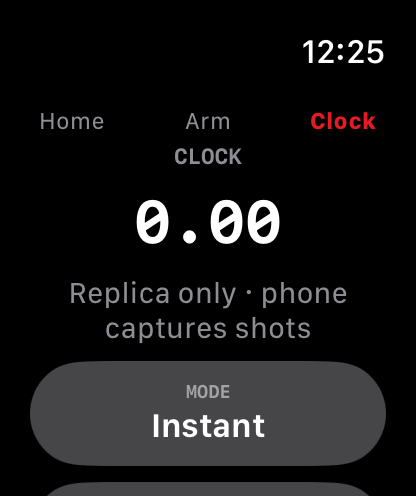
After a threat fires, open the shot clock and run the rep. It is the same idea as a range timer: a start beep, then splits for each shot the phone hears.
- Instant. Press START and the beep fires immediately. The subtitle on the clock says the buzzer means go.
- Instructor. Pick a delay of 1, 2, 3, 4, 5, 7, or 10 seconds. The phone counts that down, then sounds the start.
- buzzer, BEEP, or custom. Those are the iPhone start sounds. Record a custom one on the phone. Preview it, and push the volume to max. The beep itself is not the first shot.
- On-device listening. The microphone hears the rep and draws a level meter. On iPhone, Apple Intelligence helps tell the start sound apart from a dry-fire click or a shot. Audio is not uploaded.
- Video of the string. Open the camera on the shot clock and record while you run the rep. The video keeps the timer, shot count, split, last shot, and draw time in the corners, and it uses the same microphone so the beep and the shots are in the file. Save it to Photos. The recording stays on the device.
- Times and splits. Scroll the clock to see each shot’s time and split. Name the string and it shows up in Log. The Apple Watch clock runs the same modes, and the phone still captures the shots.